
BUY/SELL TUTORIAL WITH TRADEHERO
Congratulations! You’ve finally downloaded TradeHero, and you’ve taken the first step towards becoming a better trader.
Of course, to begin, we need to get some fundamentals down. This tutorial will teach you the basics of how to buy and sell stocks on TradeHero, as well as introduce you to some features of TradeHero to help you make more effective and informed trading choices.
BUYING STOCKS
To buy a stock, simply navigate to a stock page by tapping the securities tab on the bottom row of options. It is the dollar sign in a heart, or the number 1 located in ‘Screenshot 1’ below. You can also click the TradeHero bull located right in the centre (3) and tap the plus sign.

Screenshot 1
Choose any stock you want, or filter them by swiping the category options located at the top (2) to the left and right. You can filter them by Trending Securities, Unusual Volumes, Price Action, or view All Securities. You can also input a stock ticker or name in the search bar at the top. On top of swiping through the categories, if you tap the category, a drop down screen will appear that allows you to further filter stocks by exchange. Tapping the piechart tab on the right of the TradeHero bull will show you your portfolio, both open and closed positions.
Once you’ve reached a stock page, you’ll be able to view indicators and details of the stock, all of which we teach you to read in this tutorial. Once you’ve decided that you’d like to purchase this stock, for example, Google as shown in ‘Screenshot 2’, you have two options.

Screenshot 2
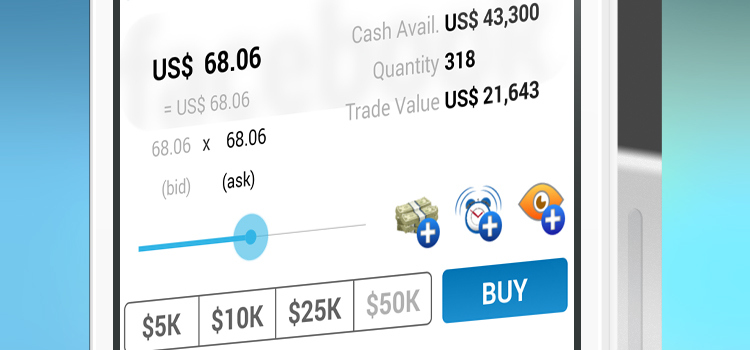
1: You can drag the dollar sign slider (1) left and right to determine how much you wish to buy. You’ll notice the quantity value and trade value (3) changing as you slide. Slide it to your desired amount.
2: You can click the pre-installed amounts (2). We offer values of $5k, $10k, $25k and $50k. When you click a certain value, the app automatically gives you the quantity and trade value closest to what you have chosen, since a single share is the lowest unit available for purchase.
Once you’re done, simply click ‘Buy’. The next screen will show options for sharing your purchase with friends on various social networks. Once you tap ‘Confirm’, your purchase is made!
SELLING STOCKS
Once you’ve bought a stock, sometime in the future you might want to sell it to make some profit or cut some losses.
To do this, simply click the TradeHero bull again, but this time, tap the minus sign. This will take you to a Quick Sell page which will list all the stocks you have in your portfolio. Tap the security you wish to sell, which will take you back to the stock page.

Screenshot 3
This time, looking at Screenshot 3 above, perform the same process as buying with choosing the quantity or value of the number of stocks (1&2) you wish to sell. This time, along with changes in your quantity and trade value, you’ll also be able to see your projected profit & loss (3) if you go ahead with selling.
Simply tap ‘Sell’, go through social network sharing, tap ‘Confirm’ and your stocks have been sold.
Notice also that you can change your option from ‘Sell’ to ‘Buy’, if you change your mind and want to purchase more of the stock instead. Simply use the slider on the right.
And that’s it! Now you can buy and sell to your heart’s content. Use TradeHero to better your trading skills, or check out more tutorials on our blog if you’re still unsure how to proceed.
Happy trading!


